
WebinarJam Review (4.0 Walkthrough)
It’s almost that you decided to check out my WebinarJam review.
You are in the perfect spot.
I’ve got a lot to review and I imagine that you’re busy so let’s get this show on the road.
WebinarJam 4.0 Review Introduction

Get Ready!
So I’m going to be doing both a review and walkthrough of the new WebinarJam 4.0.
This is beneficial for you in two ways:
- You get an overall review of this webinar software (but more importantly)…
- You get a walkthrough where you can come back to this post after you get started.
Consider this as a helpful training for getting started…
Along with plenty of helpful tips to guide you along the way.
Down below is a link where you can get taken to the WJ home page and follow along:
Yup, an extended trial (it’s also not a free trial but it’s only 1 dollar)!
You get sixty fulls days instead of just two weeks to use WebinarJam (not bad huh).
Note: Sometimes that trial duration can change so keep that in mind.
Now onto the walkthrough review.
WebinarJam Setup (From The Start)
Right off of the bat.
I love the fact that it doesn’t take very long to get up and running with a webinar.
So there are two ways to get started when it comes to WebinarJam (check image below):
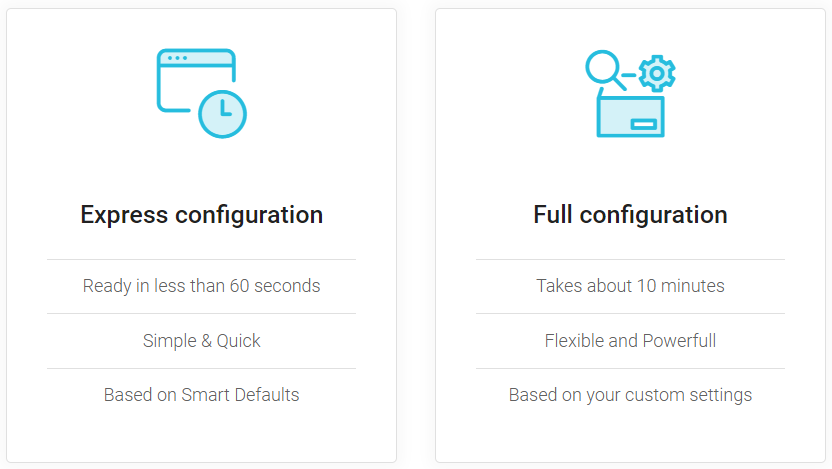
So you have:
- Express configuration.
- Full configuration.
Regardless of which option you choose: you are looking at a maximum of 10-15 minutes.
If you love getting up and running fast then you are definitely going to love this aspect.
Here’s how simple the express configuration is (I’ll walk through the full configuration after).
WebinarJam Express Configuration
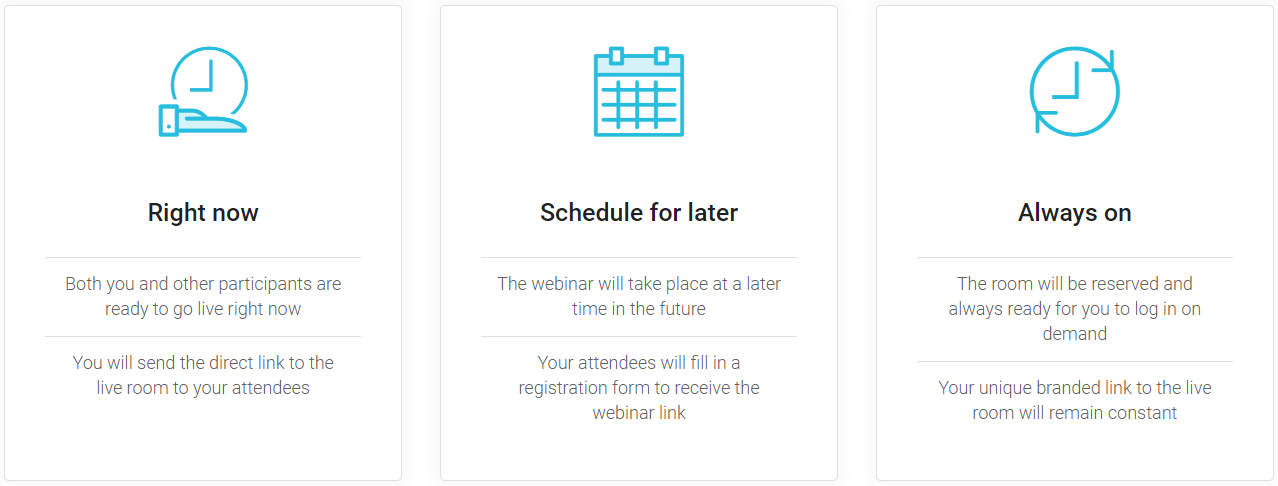
So after you pick your configuration, you will have three options to pick from:
- Right now.
- Schedule for later.
- And lastly is Always on.
You can see the descriptions of each in the picture that I put down below:
For this example, I am going to use Right Now (it’s the fastest).
You will then get taken to the basic settings page which is very easy to configure:
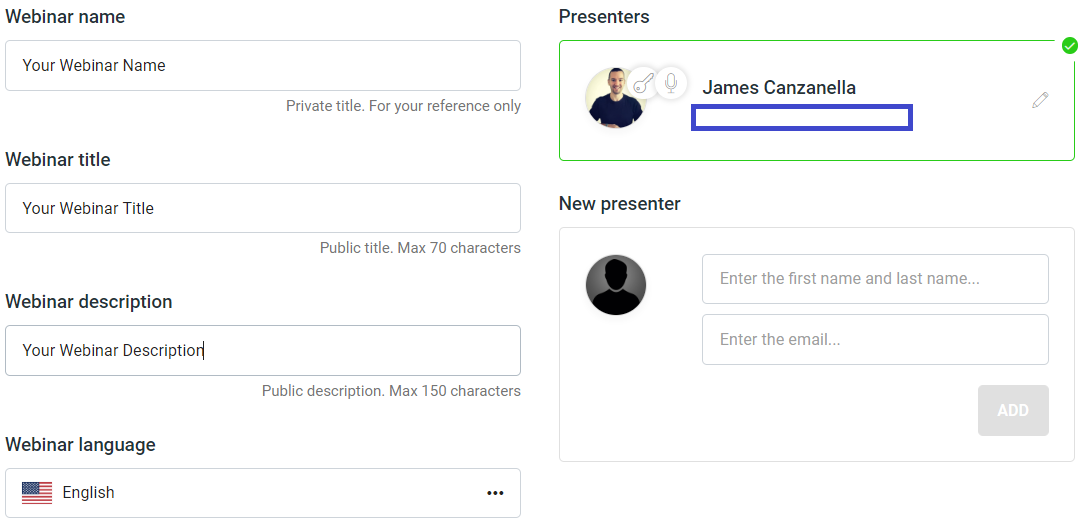
Add in your webinar:
- Name.
- Unique title.
- And of course your description (along with language last).
You can literally fly through this process.
Here, see for yourself.
This is the very next page after you add in the details above:
They weren’t kidding when they said you can get a webinar up in less than 60 seconds.
So as it says on the tin (so to speak)…
You really can get your webinars ready to run in lightning-fast speeds.
That’s the express method when it comes to creating a webinar though.
Let’s move onto the full configuration that comes along with a few more steps.
WebinarJam Full Configuration
For the full configuration, I’m going to use the Schedule For Later option.
You simply click on that tab and you will get taken to the next page for setup…
Which will now include many of the WebinarJam features.
Basic Setup
I’m not going to spend too much time on this section as we talked about it above.
You are simply entering in your webinar:
- Title.
- Name.
- Description.
- And of course, language, again.
And of course, you have the option between keeping your webinar private or not.
Pro Tip: List your webinar in the on-demand section.
This is a great way to get more traffic, views, webinar attendees, and even sales.
WebinarJam also allows you to stream from two different sections:
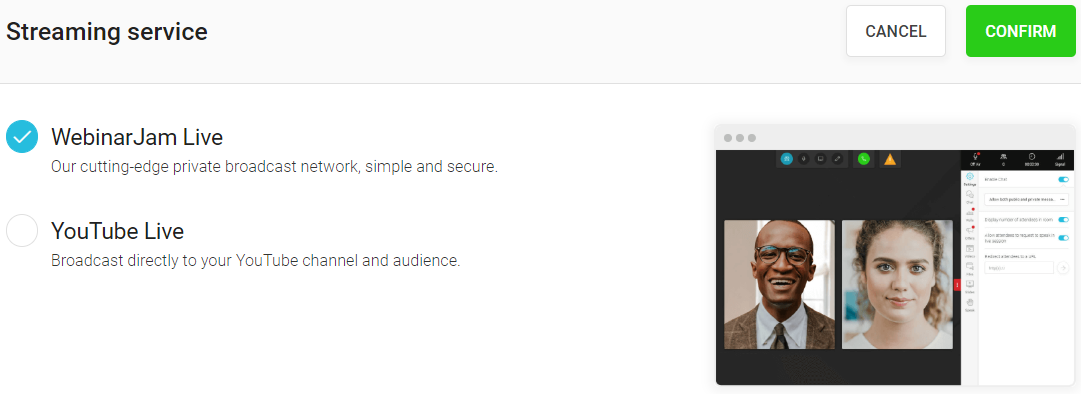
So you’ve got:
- WebinarJam Live
- YouTube Live (you would just need to connect your YouTube account).
And that’s all you need to do when it comes to the basic settings.
Pretty easy so far right?
I like giving walkthroughs just to show you that tools like this are pretty simple to use…
Even though they can look intimidating to those who aren’t exactly tech-wizards.
Let’s move onto the next step.
Webinar Schedule
So how would you like to set up your webinar?
- Perhaps just a single presentation.
- Or maybe you want to do a series of presentations.
These are the options that are available to you as you can see in the picture down below:
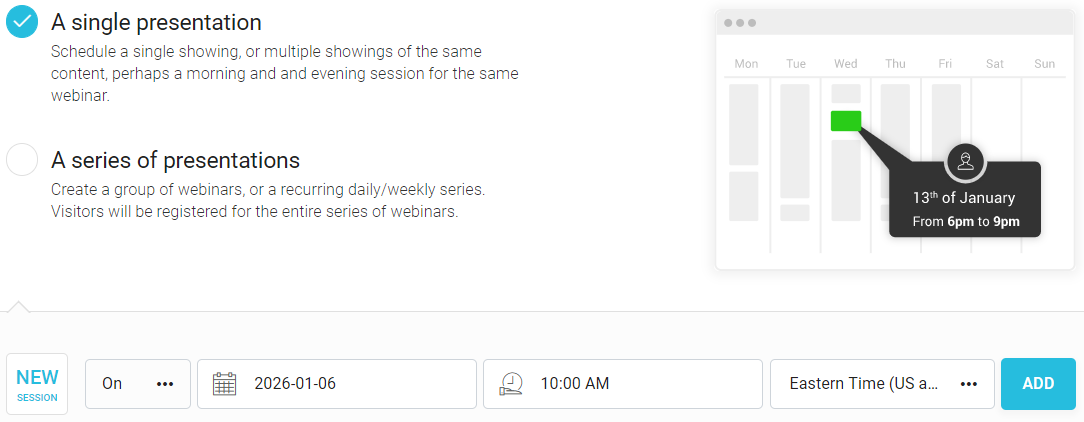
For this example, I selected A Single Presentation from the checkbox.
Then I selected the time which can include:
- The exact month, day, and year.
- The specific time (I did 10 AM because I’m a morning person).
- And you can’t forget about the time zone as well to avoid any confusion.
That’s it for this section!
Let’s move onto the next section which includes a few helpful features.
Registration Pages
Here are the main features that come along with creating registration pages:
- AB split testing (very easy to use).
- Registration fields that you can edit.
- WebinarJam templates that are customizable.
- Auto-subscription to future webinars (toggle on or off).
- Password protection for if you want to make your webinar private.
- Free registration vs paid registration (which I recommend that you keep free).
But let’s take a quick look at the WebinarJam templates for a quick second:
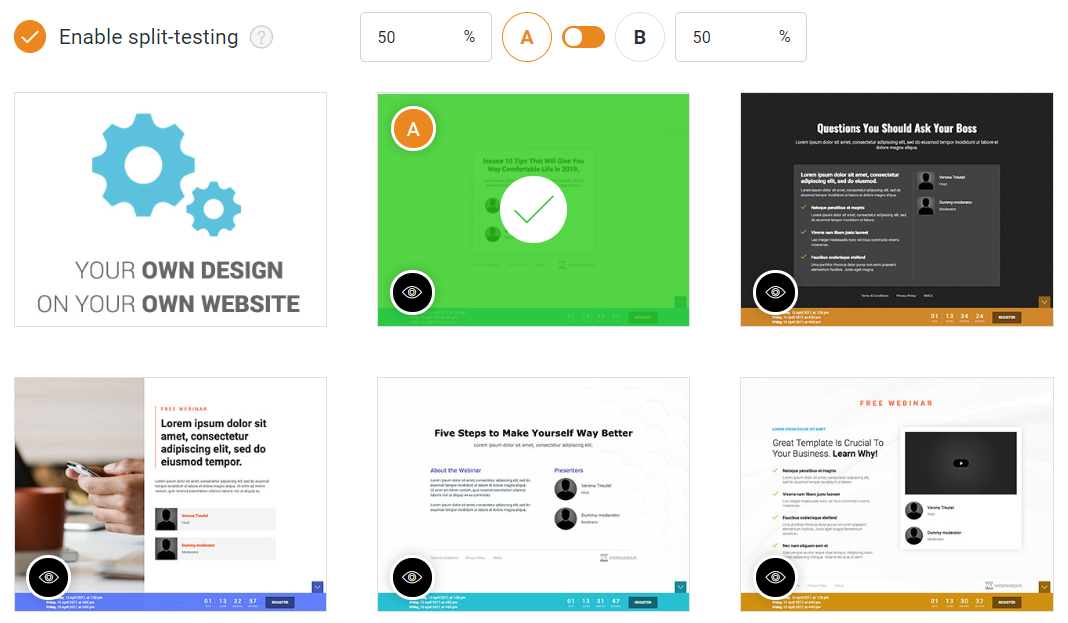
Are these some of the best looking templates that you’ve ever seen?
Probably not…
But the only thing that should matter is just how well they convert.
And from my testing?
I have noticed that some of the best converting templates are the simplest ones.
And yes there is a WebinarJam split test feature (as you can see in the image above).
Pro Tip: Keep it 50-50 and don’t make changes until you get at least 100 clicks or email optins.
Onto the next section.
Notifications
This is a great way to get more people to actually watch the webinar that they signed up for.
You get exactly what you need when it comes to webinar notifications.
Check out the image down below to see exactly what I mean:
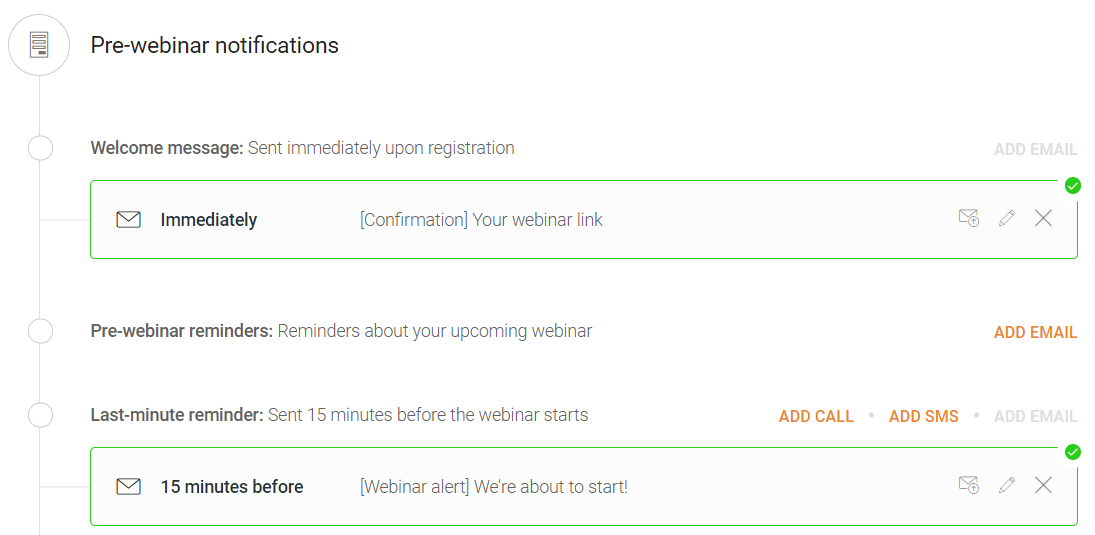
Based upon what you see in the picture right above…
The webinar pre-webinar notifications come along with:
- Immediately (right when someone first signs up).
- A pre-webinar reminder that can be sent X hours before it starts.
- A last-minute reminder that gets sent out 15 minutes before it starts.
Pro Tip: Immediate and last-minute reminders are highly recommended.
You even have the option to send out post-webinar notifications.
I just happened to trim the image as I didn’t want it to take up any more room.
Here is what it says when it comes to the post-webinar notification:
- Post-webinar message: Tell them about the replay!
If it sounds simple, it’s because it is.
Notifications are an awesome way to get your audience to actually watch your presentation.
Integrations
I do have to say that WebinarJam doesn’t have the most integrations in the world…
But they certainly have enough to get the job done.
WebinarJam also integrates with third-party tracking systems.
Examples like:
- Google Analytics.
- Facebook tracking pixel etc.
So that’s the WebinarJam integrations area.
Let’s move onto the next section of this review.
Thank You Pages
So after someone enters their email on your registration page?
This is where they get taken.
This is yet another section to set up and you can see some of the templates below:
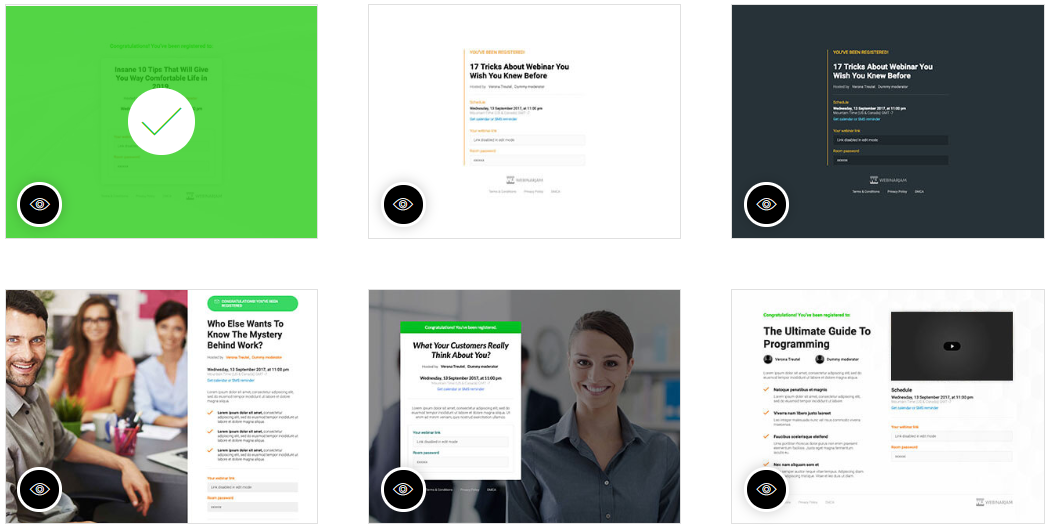
You can customize these templates too.
- The top part.
- Who the host is.
- The headline section.
- Along with the background image and colors.
Here is an example of a thank you page that I opened up in the editor:
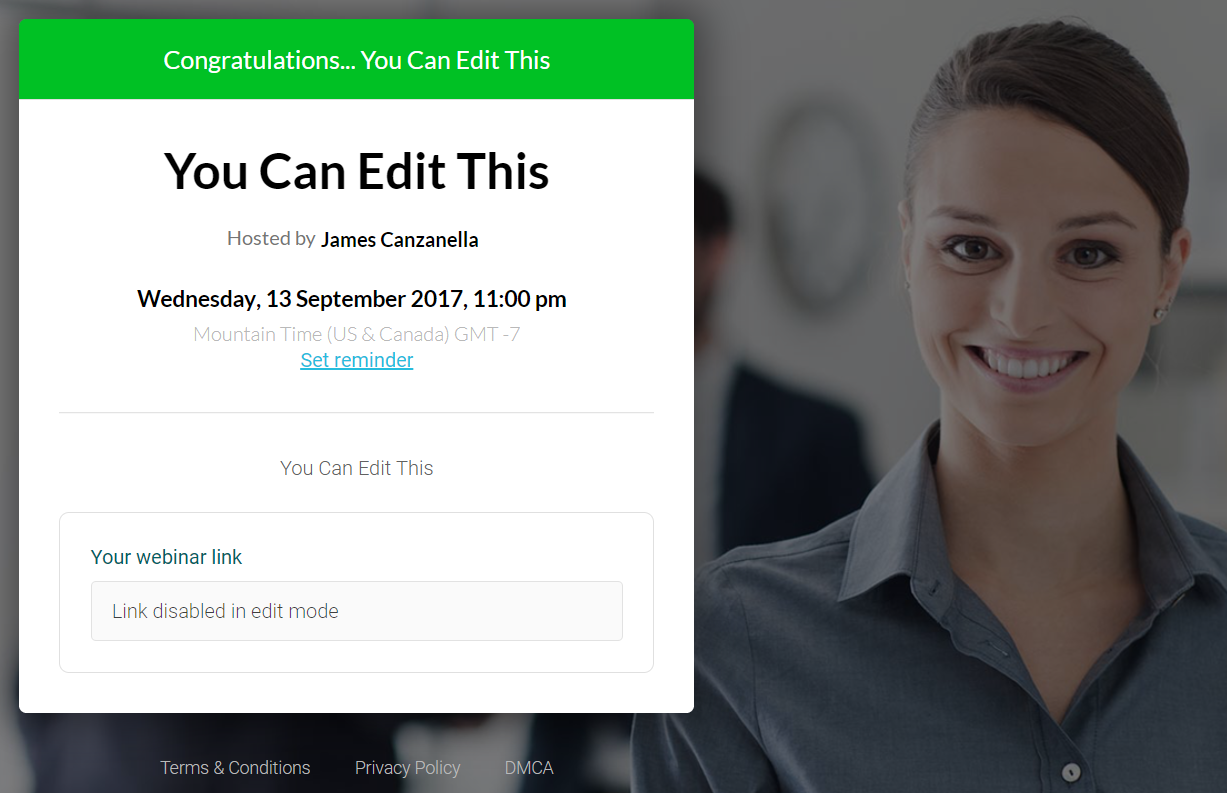
Note: You can’t edit the date as that’s taken from your scheduled time.
You can even survey your registrants on this page if you like…
But let’s continue to the best section.
Going Live
This deals with everything that comes along with presenting live, which includes:
- File handouts.
- Product offers.
- Video injections.
- Polls and quizzes.
- Slide presentations.
- And of course webinar room design.
Related Reading: The differences between live and automated webinars.
Allow me to talk a little bit more about each section in order as seen on WebinarJam.
Webinar Room Design
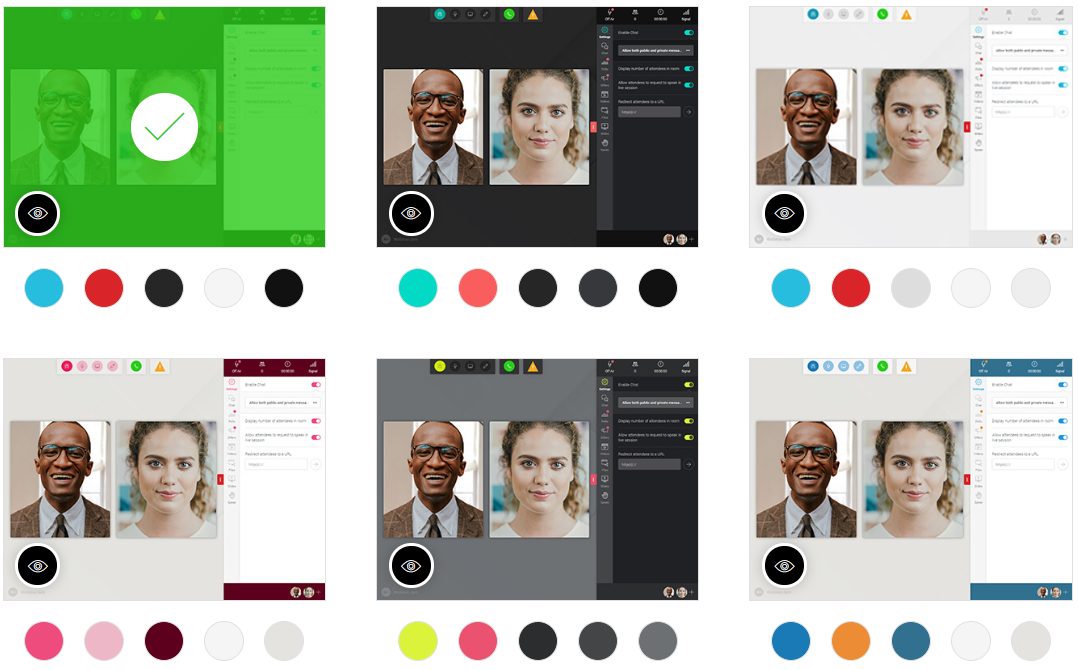
As you can see from the picture above, there are six options for you to choose from.
While it would be nice if you could customize this a little bit more…
They get the job done when it comes to presenting your webinar (and making sales)
Next up.
Polls And Quizzes
- Would you like to add a survey or quiz?
If so, you can simply toggle this feature off or on and add some appropriate questions.
Product Offers

Are you looking to make sales?
Then you will most likely be filling out this section.
While you can look above and see the information that you’ll need to fill out…
I also want to you let you know that the product offer section also comes along with:
- The ability to broadcast sales in real-time (great for social proof).
- You can apply scarcity in your offer by limiting the number of sales.
- You can also apply urgency where the offer is gone once the countdown hits zero.
These are all enabled by simply toggling on or off the specific feature.
In case you haven’t noticed by now…
The entire get started process is pretty darn easy thanks to the way they set things up.
Video Injections
This is a feature that allows you to play video clips in your presentation.
All you need to do here is upload your video (which can be done through a YouTube URL).
You will then be able to play these clips any time you like with only a click of a button.
Talk about helpful!
Then we have file handouts that allow you to pass out files to participants…
And of course, slide presentations which are great for utilizing pre-made slides.
Note: Those are self-explanatory so I didn’t want to spend too much time on them.
Self-explanatory, but very helpful if needed.
Onto the next (and final) section of this review and walkthrough.
Webinar Replay Recording
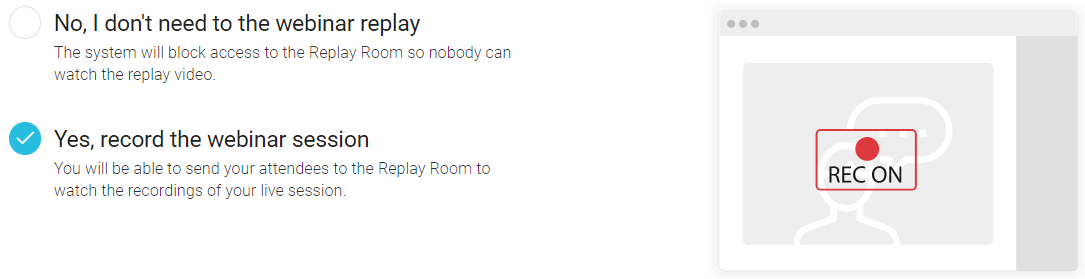
So you’ve got two simple choices:
- Don’t provide a webinar replay.
- Record the webinar and provide a replay.
Pro Tip: Definitely provide a replay as it’s a great way to really increase your sales!
And that is all when it comes to this webinar platform.
While it didn’t take 30 seconds to set up like the express configuration…
If I can create a post about how to get started then I’m sure you can do it on your own.
It really is that simple.
Let’s address one popular question when it comes to this software platform.
How Much Is This Live Webinar Platform?
I’m sure you’ll be happy to know that WebinarJam is priced appropriately.
Here are the three options when it comes to the WebinarJam pricing:
- WebinarJam Basic is $479 per year.
- WebinarJam Pro is just $783 per year.
- And WebinarJam Premium is $997 per year.
Keep in mind that there are also webinar attendees limits.
I did a separate post that actually dives deeper into the plans and price tags.
I’ll put a link down below in case you want to read more:
Related WebinarJam Post: What’s the best WebinarJam pricing plan?
The best part about WebinarJam is that it literally pays for itself (and so much more).
Seriously.
Webinar offers tend to be around $297-$497 (at the very least)…
And it doesn’t take many sales in order to make your money back and be in profit.
Let’s no get to the grand finale of this ultimate review.
WebinarJam Review Conclusion

It’s probably easy for you to see why I happen to love this webinar software so much.
Nevertheless.
Here is a quick glance into some of the pros and cons when it comes to this tool.
Pros
- The setup is lightning fast…
- And it’s really easy to have your webinar ready.
- This tool can literally pay for itself (and so much more).
- Analytics is a nice perk for checking out your stats and conversions.
- Split testing comes with it so you don’t need to get a third-party tool.
- There’s plenty of conversions increasing features that can be easily toggled on or off.
Cons
- More integrations could be helpful.
- Being able to completely customize the webinar room would be nice.
But then again?
It’s most likely easier to just one of their proven-to-convert themes.
There’s really not a whole lot to dislike when it comes to WebinarJam…
And that’s always something that you want to hear when it comes to webinar software.
Start Testing WebinarJam Today
So hopefully this Webinar Jam article allows you to accomplish two things.
- Decide if you want to get started using WebinarJam and if you do…
- You can use this post to help you set up your first live webinar with this software.
Since you’ve pretty much seen the majority of the WebinarJam dashboard…
I think that you will really like what they have to offer.
I’m going to hook you up with a link that gets you an extended trial for WJ:
Reminder: Sometimes that special trial duration can change so keep that in mind.
Sixty days is a lot of time too.
You could literally make plenty of sales before the trial period even ends.
Not bad right?
If you need any more assistance when it comes to signing up for WebinarJam?
The post down below can help you out.
Getting A WebinarJam Trial: Follow this link to see how it’s done.
I want to say thank you for taking the time to read this live webinar tool review.
I hope that you like WebinarJam just as much as I do.
Other Reading: My EverWebinar review.
About the Author James Canzanella
A former personal trainer who went from unemployment to online business success. He's been marketing since 2012 and (still) enjoys lifting weights, listening to rock music, and relentlessly quoting movie lines.
